01
Create a card for Twilio in Halocard
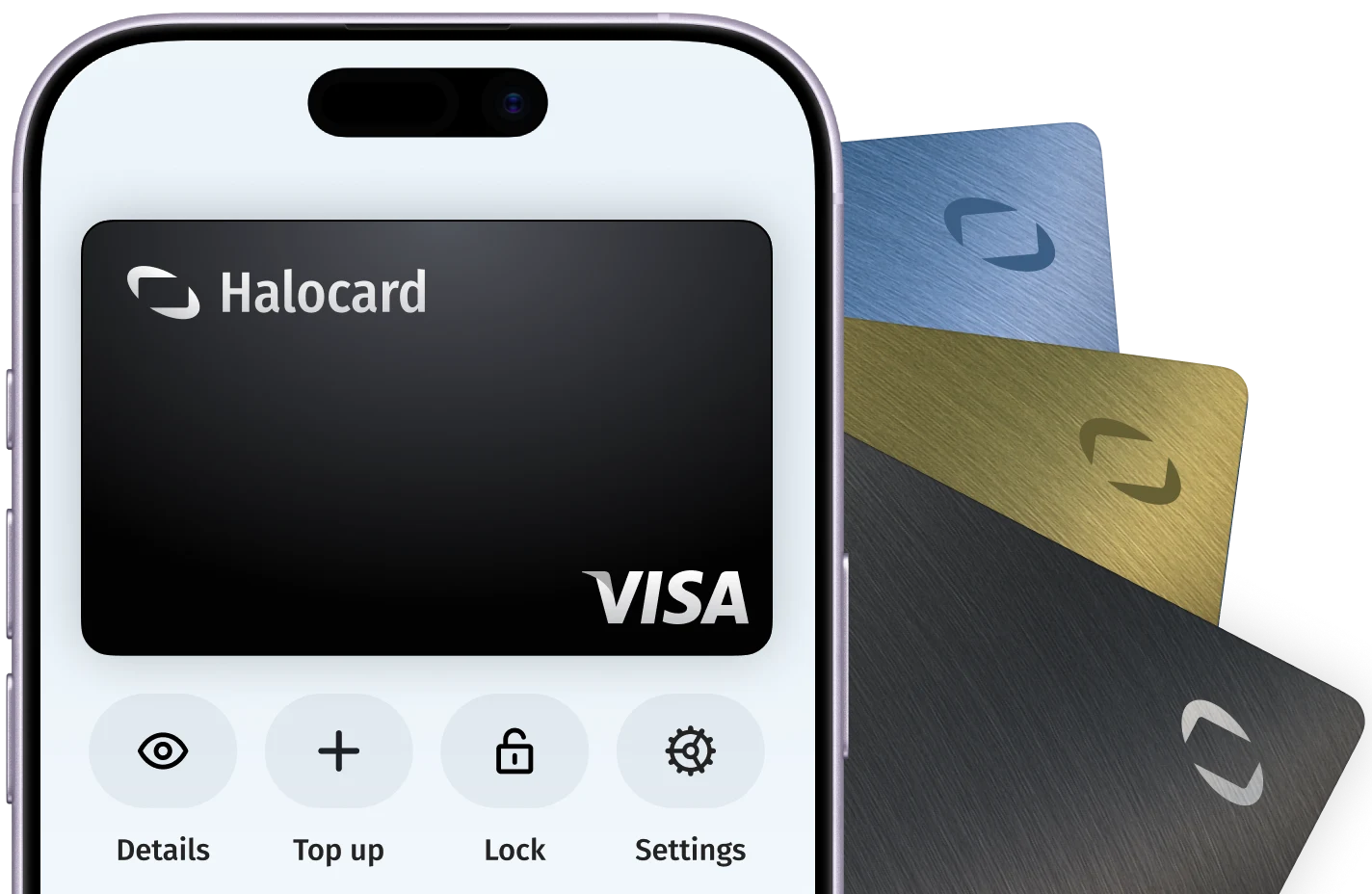
In your Halocard dashboard, create a new card, name it Twilio and set a limit that covers what you are about to pay.

AcceptedHalocard is accepted
Halocard is accepted at Twilio. Twilio pay-as-you-go accounts are funded by credit card or PayPal, either by adding funds on the Billing Overview page or with auto-recharge when the balance runs low. ACH and wire transfer are only for invoiced accounts committing at least $12,000 a year. Every card charge goes through a strict billing address check.
TWILIO INCTwilio5734Computer software stores01
In your Halocard dashboard, create a new card, name it Twilio and set a limit that covers what you are about to pay.
02
Go to the Payment Methods page in Twilio Console and click Add a payment method. Select Credit Card. If you are upgrading from a trial, the upgrade flow ends on the same Payment Method page.
03
Type the card number, expiry and security code, then the billing address your card issuer has on file. Click Add Card.
04
On the Billing Overview page, under Current Balance, click Add Funds. Choose Payment, enter the amount, pick the card from the drop-down and click Add to my balance.
05
On Billing Overview, click Enable auto recharge and switch it to Enabled. Set Recharge Balance To and When Balance Falls Below, click Select Payment Method, choose the card, click Select and then Save.
Twilio is a cloud communications company listed on the NYSE as TWLO. It sells usage-based APIs for SMS, RCS, WhatsApp, voice, email, video and identity verification, paid from a prepaid account balance. Hundreds of thousands of companies, from startups to the Fortune 500, and millions of developers use it in more than 180 countries.