01
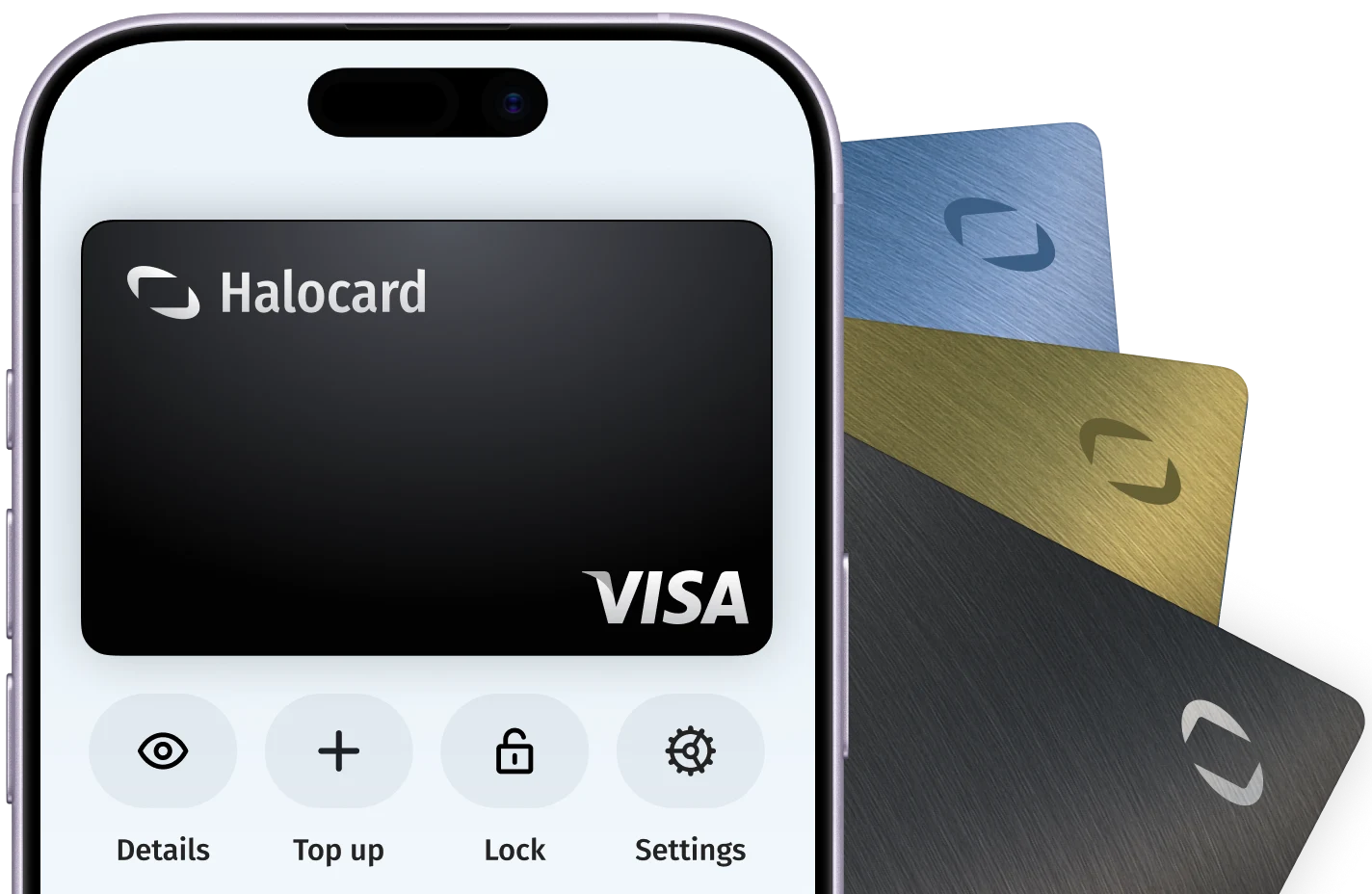
Create a card for n8n in Halocard
In your Halocard dashboard, create a new card, name it n8n and set a limit that covers what you are about to pay.
AcceptedHalocard is accepted
Halocard is accepted at n8n. n8n Cloud plans are paid at checkout after you select Upgrade, where you choose annual or monthly billing and a payment method. Annual Business and Enterprise plans can also be paid by invoice or wire transfer.
5817Digital goods: applications (excluding games)While Halocard has successfully processed transactions at n8n, this isn't a guarantee of acceptance. Merchant acceptance can change at any time, and merchants can apply fraud and risk-based controls that prevent individual customers from using US-issued cards at checkout. We recommend using Halocard to make a test payment with n8n in your own situation to confirm acceptance.
01
In your Halocard dashboard, create a new card, name it n8n and set a limit that covers what you are about to pay.
02
Log in to your n8n Cloud account and select the Upgrade button in the upper-right corner.
03
Select your plan, then choose whether to pay annually or by the month. Annual billing shows Starter at $20 a month and Pro at $50 a month.
04
Select a payment method and complete the checkout. n8n collects the payment through its merchant of record.
n8n is a workflow automation platform from n8n GmbH in Berlin. It builds workflows and AI agents in a visual editor with code steps, sold as n8n Cloud hosted by n8n in Frankfurt or as self-hosted Business and Enterprise plans. Plans are priced by full workflow executions, not by step or user.