01
Create a card for Adobe in Halocard
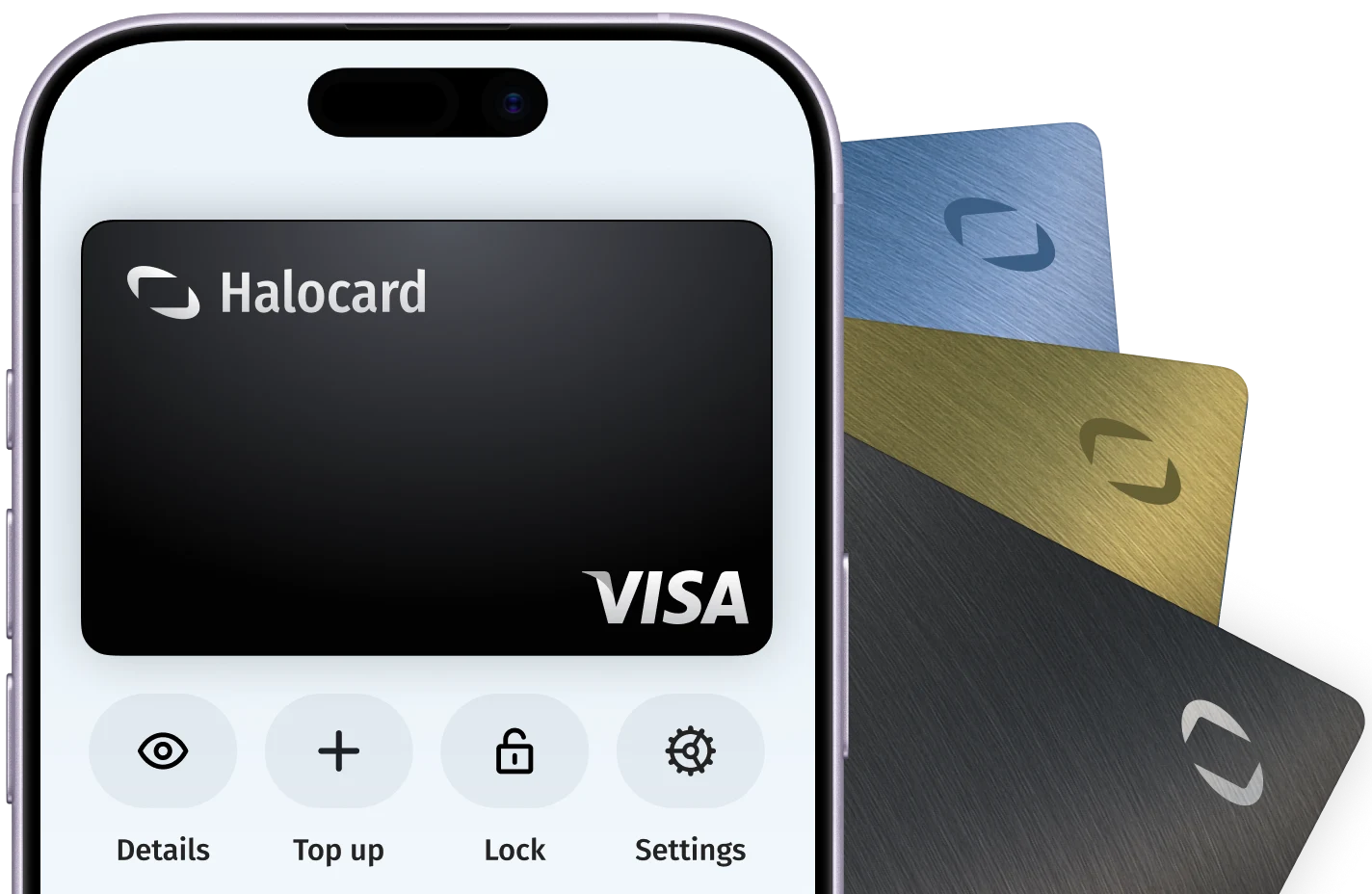
In your Halocard dashboard, create a new card, name it Adobe and set a limit that covers what you are about to pay.

AcceptedHalocard is accepted
Halocard is accepted at Adobe. Adobe accepts Visa, Mastercard, American Express, Discover and Diners Club cards, plus PayPal, Apple Pay, Google Pay, Amazon Pay and Klarna for Creative Cloud, Acrobat and Express plans. Adobe asks that your payment method is registered in the same country as your Adobe account, so choose the card's country on the payment page at checkout.
ADOBEADOBE*CREATIVE CLOUD ALL APPSADOBE ACROPRO SUBSADOBE PHOTOGRAPHY PLANADOBE INC. SAN JOSE CA5734Computer software stores5817Digital goods: applications (excluding games)01
In your Halocard dashboard, create a new card, name it Adobe and set a limit that covers what you are about to pay.
02
When you buy a new plan on adobe.com, select the card's country or region in the drop-down on the payment page, then confirm the change when the page asks to refresh. The currency and tax update to match.
03
For a plan you already have, sign in at account.adobe.com. In the Plans and payment window, select Change payment for your plan.
04
In the Your payment method window, select Add new, enter the card number, expiry and security code, then select Save. Adobe applies the new card to all existing and new invoices.
05
If your plan shows a billing issue, open Change payment again and select Retry to charge the card on file once more. The billing error disappears once the payment succeeds.
Adobe Inc. is a software company based in San Jose, California. It sells Creative Cloud apps such as Photoshop, Illustrator and Premiere, Acrobat for PDFs, Adobe Express and Firefly generative AI, mostly as monthly or yearly subscriptions for individuals, students, teams and businesses.