01
Create a card for Nintendo in Halocard
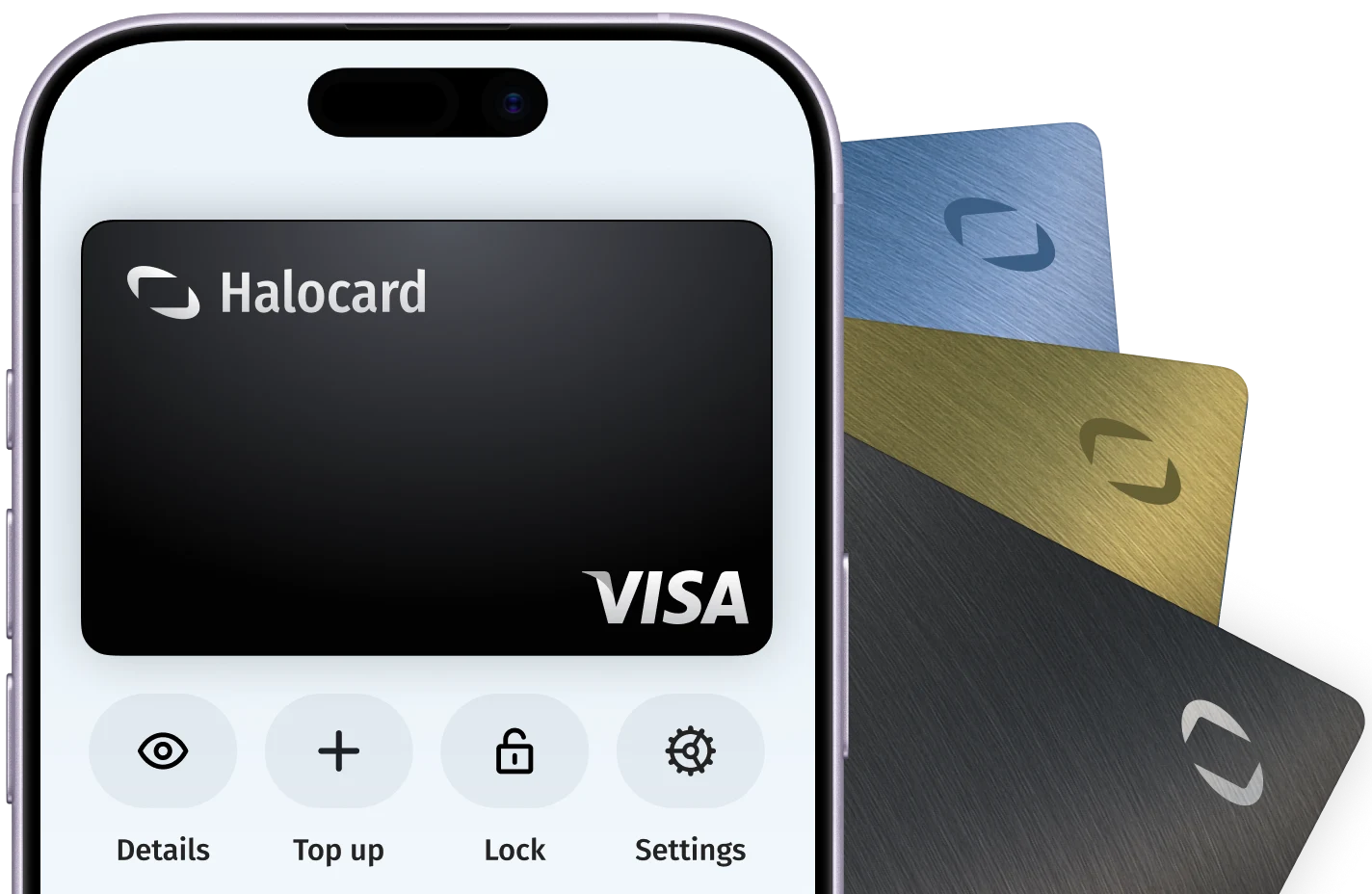
In your Halocard dashboard, create a new card, name it Nintendo and set a limit that covers what you are about to pay.

AcceptedHalocard is accepted
Halocard is accepted at Nintendo. Nintendo accepts Visa, Mastercard and Discover credit, debit and gift cards, PayPal and Nintendo eShop Cards in the Nintendo eShop and Nintendo Store, plus My Nintendo Gold Points toward digital games. Use a card issued in the same country your Nintendo Account is set to, and enter its billing ZIP code exactly.
NINTENDONINTENDO ESHOPNINTENDO STORENINTENDO SWITCH ONLINENINTENDO OF AMERICA5816Digital goods: games01
In your Halocard dashboard, create a new card, name it Nintendo and set a limit that covers what you are about to pay.
02
Launch Nintendo eShop from the HOME Menu and select your account. Select your icon in the upper-right corner, choose Add Funds, then Credit Card.
03
Pick an amount, then enter the card number, expiration date, security code and billing ZIP code and select Next. Adults can tick Save to store the card. Select Confirm, then Add.
04
Sign in to the Nintendo Account Shop Menu website, select Save under Credit Card, enter the card and select Save. The saved card works in the eShop and on the website.
05
In Nintendo eShop, select Nintendo Switch Online, then Check/Change Membership. Choose a plan and Proceed to Purchase, select Credit Card, enter the card and billing ZIP code, then Add funds and purchase.
Nintendo is a Japanese video game company that makes the Nintendo Switch 2 and Nintendo Switch consoles and games such as Mario Kart and Animal Crossing. Nintendo of America sells digital games through the Nintendo eShop and Nintendo Store and runs the Nintendo Switch Online membership, sold in individual and family plans.