01
Create a card for Microsoft Azure in Halocard
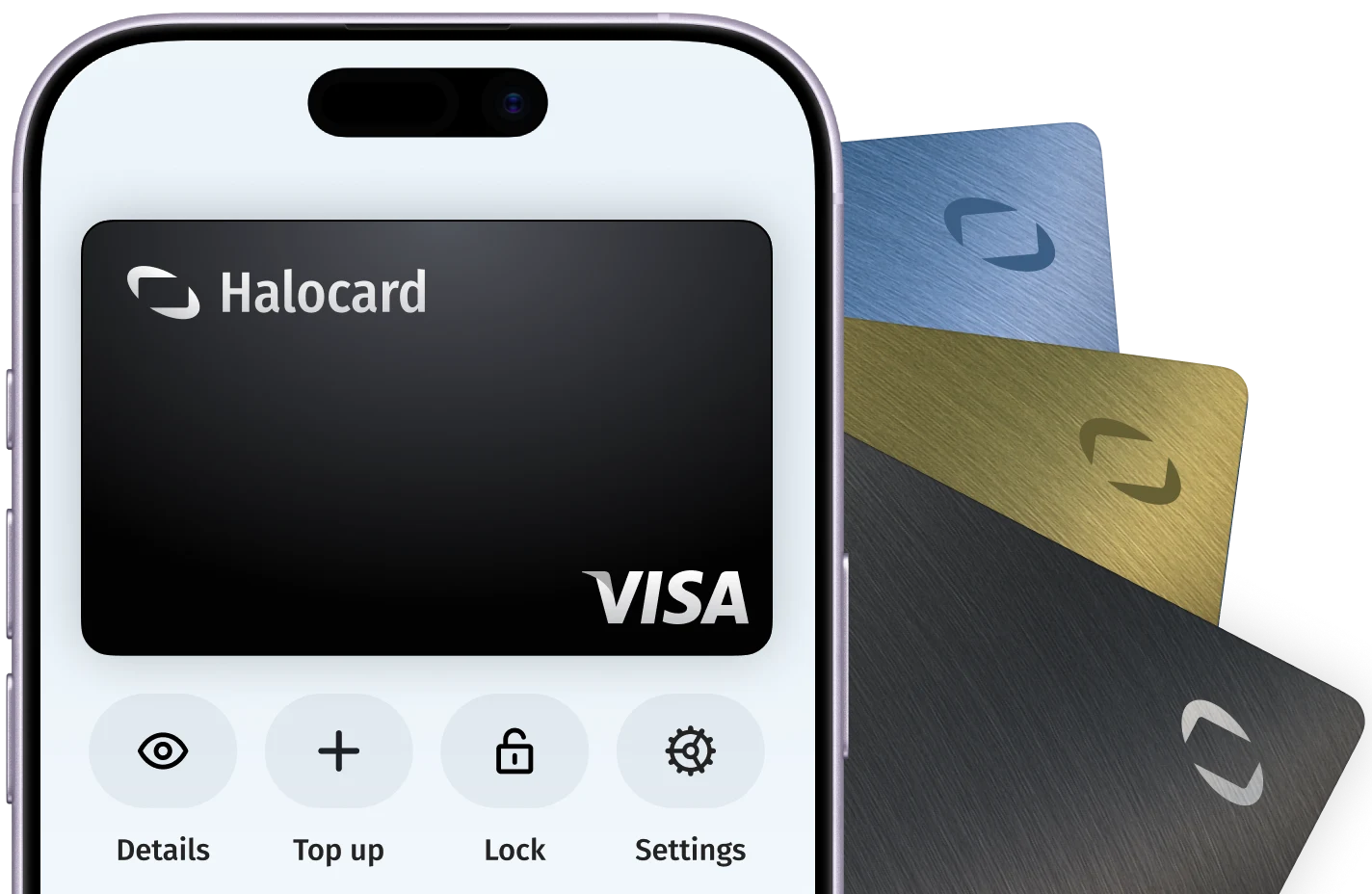
In your Halocard dashboard, create a new card, name it Microsoft Azure and set a limit that covers what you are about to pay.

AcceptedHalocard is accepted
Halocard is accepted at Microsoft Azure. Microsoft Azure accepts Visa, Mastercard, American Express and Discover credit and debit cards, and approved business accounts can pay invoices by wire transfer. Pay-as-you-go usage is charged to the card automatically within 10 days after each monthly billing period ends.
MSFT AZURE4816Computer network and information services5734Computer software stores01
In your Halocard dashboard, create a new card, name it Microsoft Azure and set a limit that covers what you are about to pay.
02
During Azure sign-up, the Identity verification by card step asks for your card. Enter the name, billing address and CVV exactly as they appear on the card, with the address in the country you chose under About you.
03
Sign in to the Azure portal as the account administrator, search for Cost Management + Billing and select the subscription. Choose Payment methods, then Add payment method, enter the card, tick Make this my default payment method and select Next.
04
If a charge fails, open Cost Management + Billing, then Invoices, and select Settle balance. Choose a card or add a new one, complete the multifactor authentication prompt and select Pay.
Microsoft Azure is the cloud computing platform of Microsoft Corporation, based in Redmond, Washington. Customers pay for virtual machines, storage, databases and AI services such as Azure OpenAI, mostly pay-as-you-go and billed monthly in arrears. Microsoft says Azure revenue passed $100 billion for the first time in its fiscal year ended June 30, 2026.