Privacy Badger Review (2026): Is the EFF Extension Worth It?

Edward Taylor

Quick Answer: Privacy Badger is a free browser extension from the EFF that blocks third-party trackers rather than ads, and it does it without lists you have to maintain or settings you have to learn. It sends Global Privacy Control and Do Not Track signals on your behalf, replaces tracking widgets with click-to-activate placeholders, and strips tracking from outgoing links on Google and Facebook. It is not an ad blocker, and it is not a replacement for one.
The question everyone asks is whether it still earns a slot next to uBlock Origin. That argument has run for years on Reddit, and the answer depends on what you want rather than on which is better. The backdrop is an advertising industry the EFF calls a massive surveillance machine, built on real-time bidding that broadcasts your browsing to thousands of companies.
We installed it from the official Edge listing, worked through the EFF onboarding, then browsed news, shopping and video sites with it running. We went through every tab of the options page and watched the tracking domain count climb. Here is what it protects, what it leaves alone, and who should install it.
Key Takeaways
-
Privacy Badger is made by the Electronic Frontier Foundation, is free and open source, and takes no money from advertisers.
-
It sends Global Privacy Control and Do Not Track signals automatically, then blocks the domains that ignore them.
-
Local learning is switched off by default after Google researchers showed it could be used to fingerprint users.
-
Our install reached 3,384 blocked tracking domains, all managed through color-coded sliders you can override.
-
It blocks ads only when they track you, so most people will run it alongside an ad blocker rather than instead of one.
Privacy Badger at a Glance
| Feature | Details |
|---|---|
| Developer | Electronic Frontier Foundation, a nonprofit |
| Price | Free and open source, no paid tier |
| Browsers | Chrome, Firefox, Edge, Opera, Brave, Firefox for Android |
| Approach | Algorithmic tracker blocking, not human-curated lists |
| Signals sent | Global Privacy Control and Do Not Track, by default |
| Extra protections | Widget replacement, outgoing link cleaning, Privacy Sandbox opt-out |
| Ad blocking | Only ads that track you across sites |
| Best for | People who want tracker blocking with no configuration |
Our Rating
| Category | Score |
|---|---|
| Tracker blocking | 4.4 / 5 |
| Ease of use | 4.9 / 5 |
| Speed and performance | 4.6 / 5 |
| Features and control | 4.2 / 5 |
| Transparency | 5.0 / 5 |
| Overall | 4.5 / 5 |
What Is Privacy Badger?
Privacy Badger is a free browser extension built by the EFF to stop companies spying on you online. It has run since 2014, and the EFF calls it an algorithmic tracker blocker: rather than shipping a human-edited list of bad domains, it defines what tracking looks like and blocks domains it observes doing it.
That definition carries two consequences worth stating up front. First, the extension does not obstruct ads unless they are tracking you across multiple sites, so some ads stay visible. Second, it targets third-party tracking, so first-party analytics on the site you are visiting are out of scope, and it is not trying to make you anonymous. It is not a VPN either, and it does nothing about your IP address.
There is also history that shapes how it works today. In 2020, after disclosures from Google's security team, the EFF turned local learning off by default, because a badger that learned as you browsed could itself make you more identifiable. Blocking now runs from a pre-trained list refreshed periodically, with learning as an opt-in. The Register put the trade-off cleanly: rely on the supplied list, or opt in and accept a fingerprinting risk.
Installing Privacy Badger on Major Web Browsers
Privacy Badger works on all the major web browsers, and installing is the usual two clicks. We used the Microsoft Edge Add-ons store, where the listing is Featured and names the Electronic Frontier Foundation as developer.
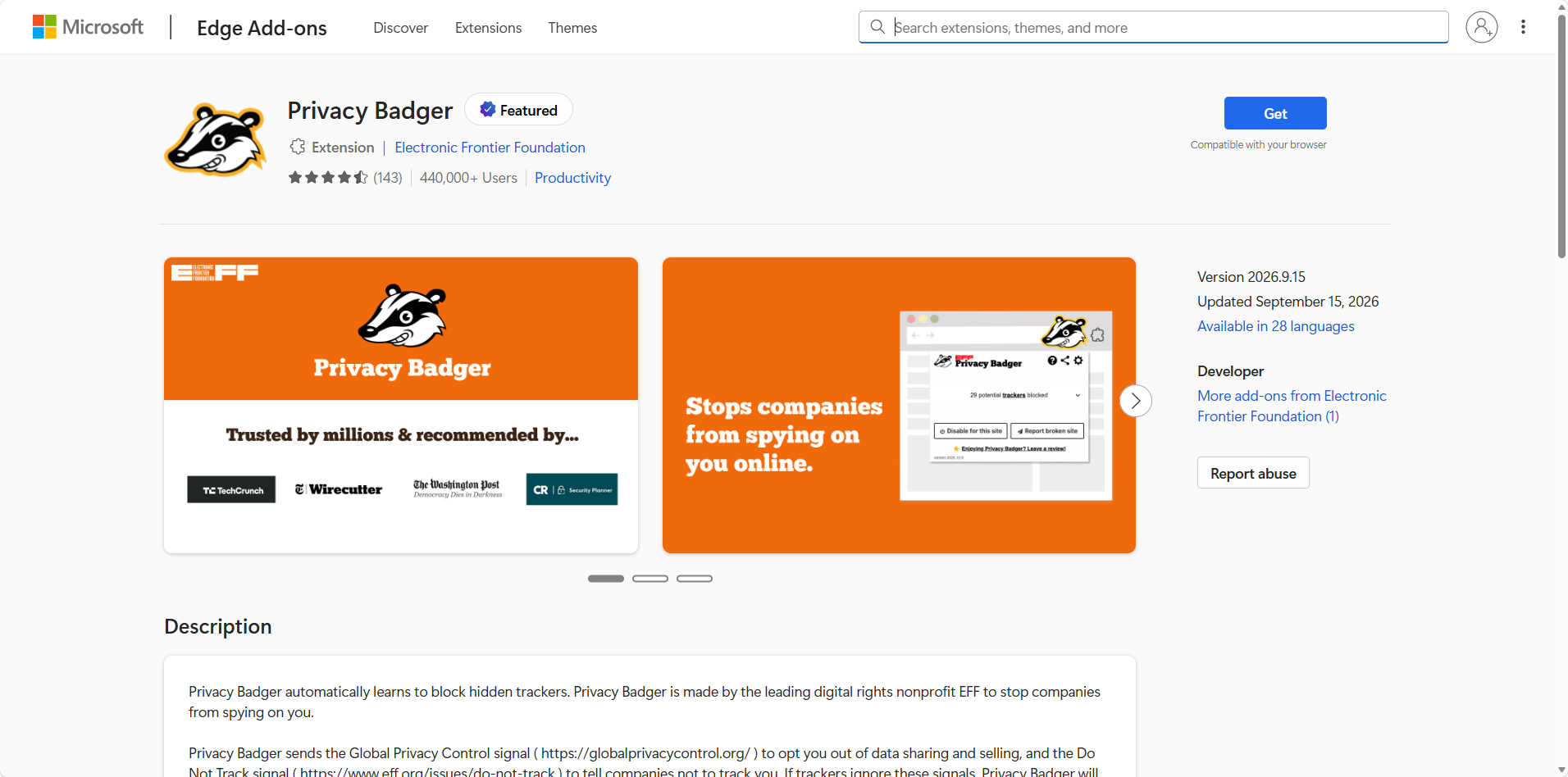
The Edge listing when we installed: 4.5 stars from 143 ratings, 440,000+ users, version 2026.9.15 updated September 15, 2026, in 28 languages.
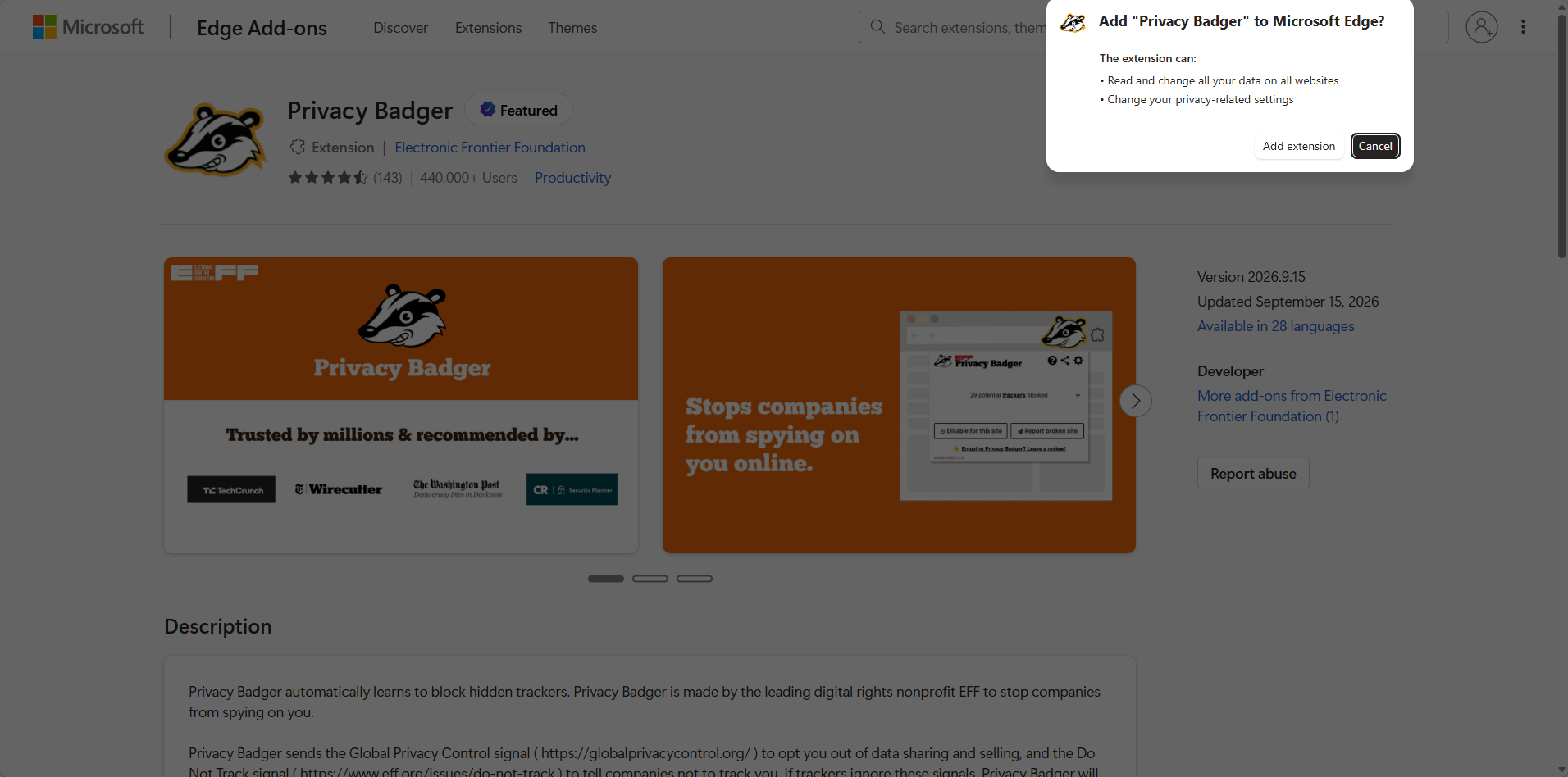
Two permissions: read and change your data on all websites, and change your privacy-related settings. The second one is how it flips Privacy Sandbox off.
The permission wording alarms people, and the EFF has a straight answer: the extension needs access to many websites because it has to watch third-party requests everywhere to determine what is tracking. Both store listings promise more privacy protections on the way, and both give an email address to report bugs. The Chrome Web Store listing and the Firefox Android listing both say it never shares data about your browsing unless you choose to file a broken site report.
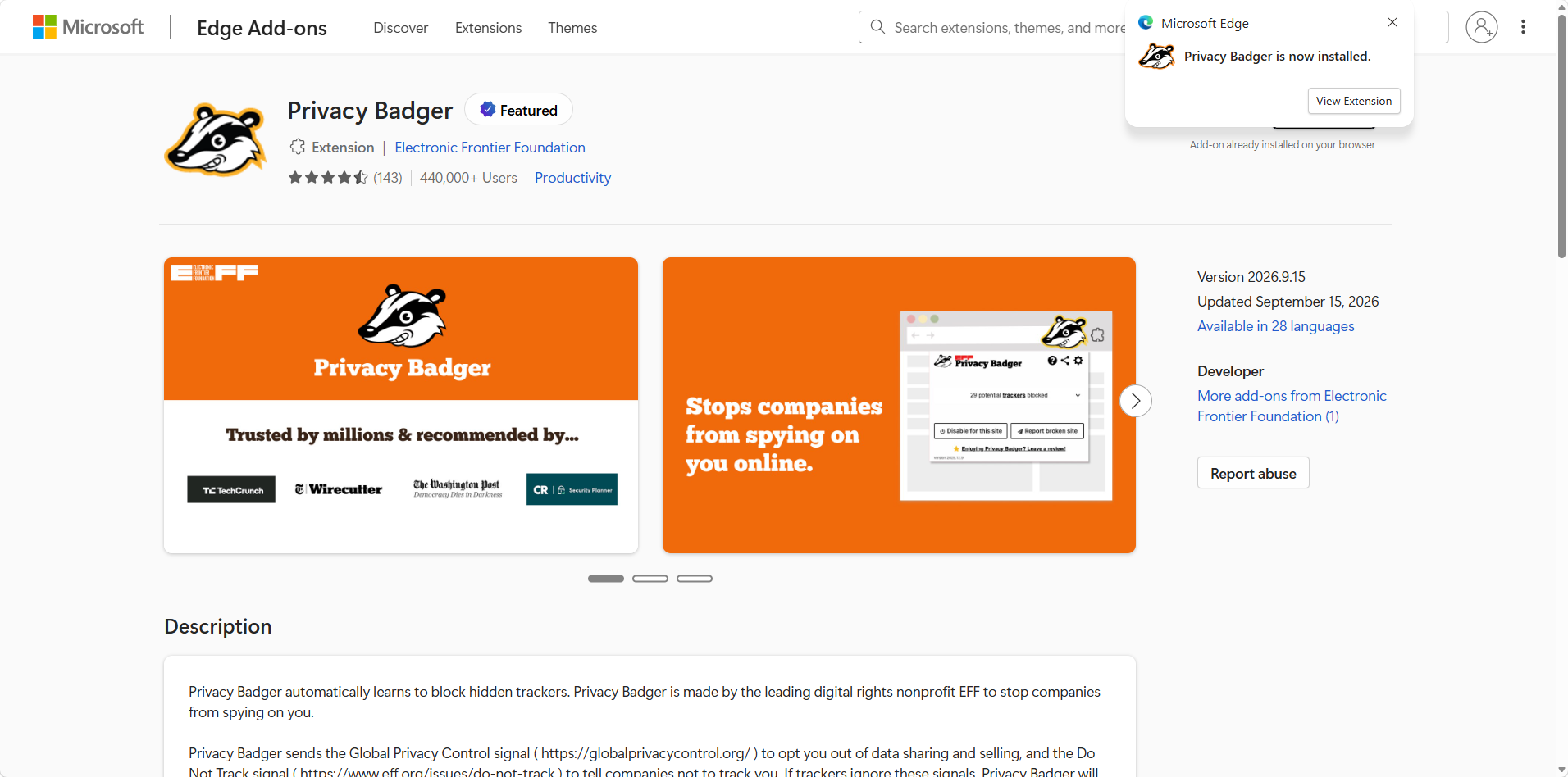
Installed in seconds. From here the EFF takes over with a short welcome page.
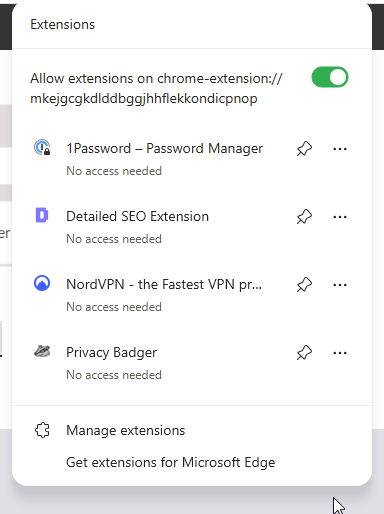
In the extensions menu it sits quietly alongside everything else, marked "No access needed" on this page.
The onboarding is better than most. EFF's welcome page asks you to pin the badger to the toolbar and teaches the one button that matters when something goes wrong.
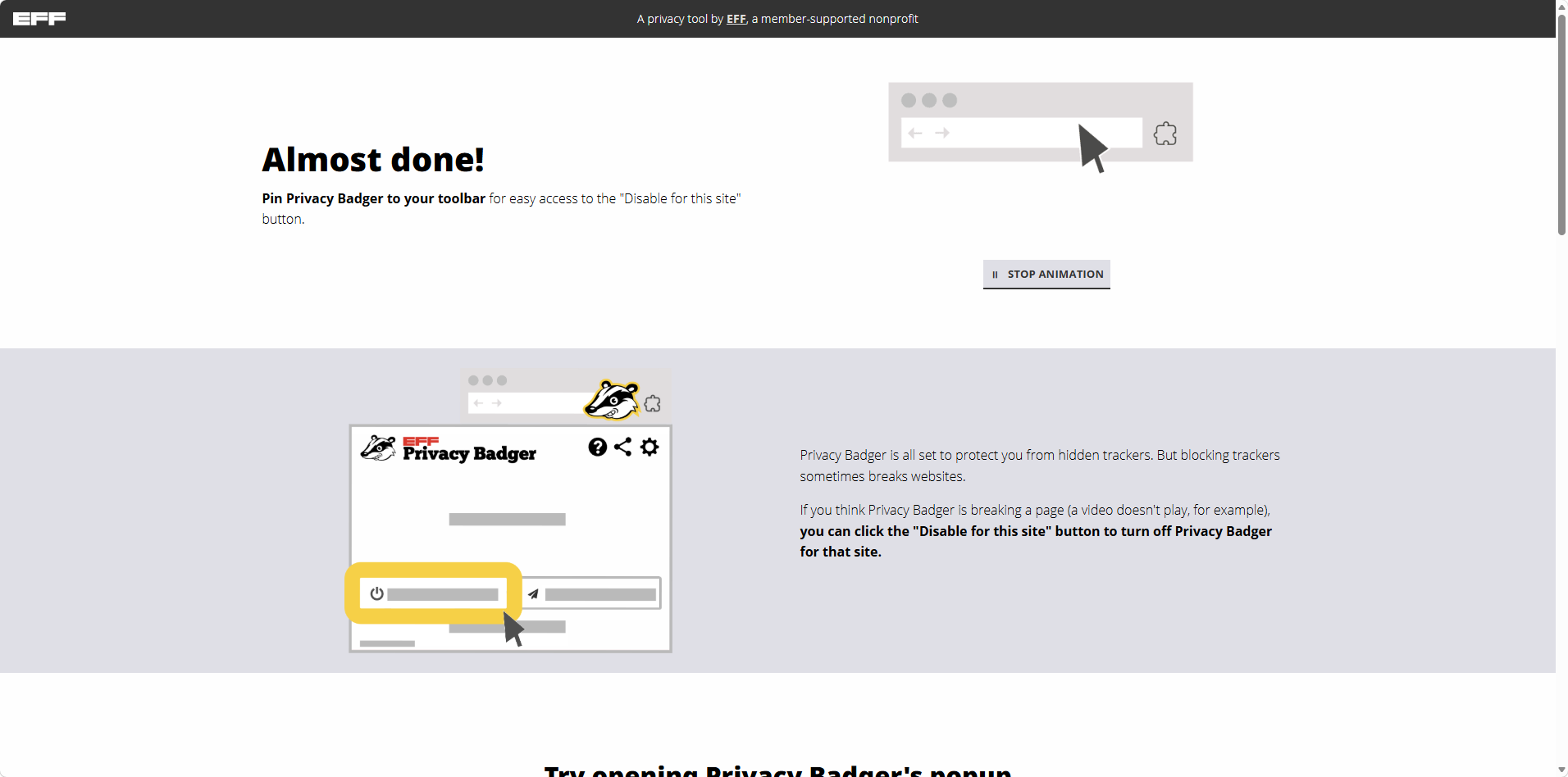
The welcome page front-loads the escape hatch: if a video does not play, click Disable for this site.
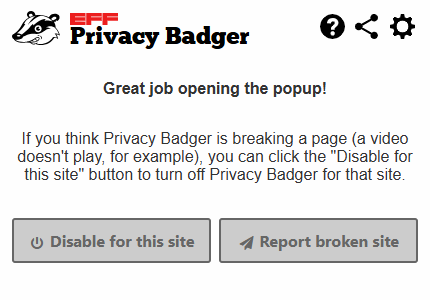
The popup we opened during onboarding. Disable for this site and Report broken site are the two controls you will actually use.
Automatic Tracker Blocking and How It Learns
Automatic tracker blocking is the entire point, and in daily use it is invisible. The badger icon shows a count, the count climbs, and nothing asks anything of you. The Tracking Domains tab shows the scale of what it has decided.
Our install had decided to block 3,384 potential tracking domains. Each one gets a red, yellow or green slider you can drag.
The color-coded sliders are the control surface: red blocks a domain outright, yellow allows it but blocks its cookies and referrers, green allows it. If the badger gets one wrong, you set it correct yourself rather than wait for a list update. You can override any decision per domain and the choice sticks. Click a domain and it shows where that domain was seen tracking you, which almost nothing else in this category offers.
Under the hood, detection watches for the behaviors that define tracking. Release notes show it learning from cookies, canvas fingerprinting and the Beacon API, and fully blocking fingerprinters rather than merely cookie-blocking them. Because the approach is behavioral, it can catch new or obscure trackers that a static list has never heard of. The flip side is that a brand new domain may track you for a bit while it earns its way onto the list, which is the honest cost of learning behavior rather than reading a list.
One thing to note from our testing: the "Learn to block new trackers from your browsing" box in General Settings is unchecked, with a warning icon beside it. That is the 2020 change in the interface, and we left it alone.
What Happens When Trackers Ignore Your Signals
Privacy Badger sends two signals for you: Global Privacy Control, a legal opt-out of data sharing and selling in some US states, and Do Not Track, a request. If trackers ignore these signals, Privacy Badger learns to block them, which is the cleanest description of its logic anyone has written.
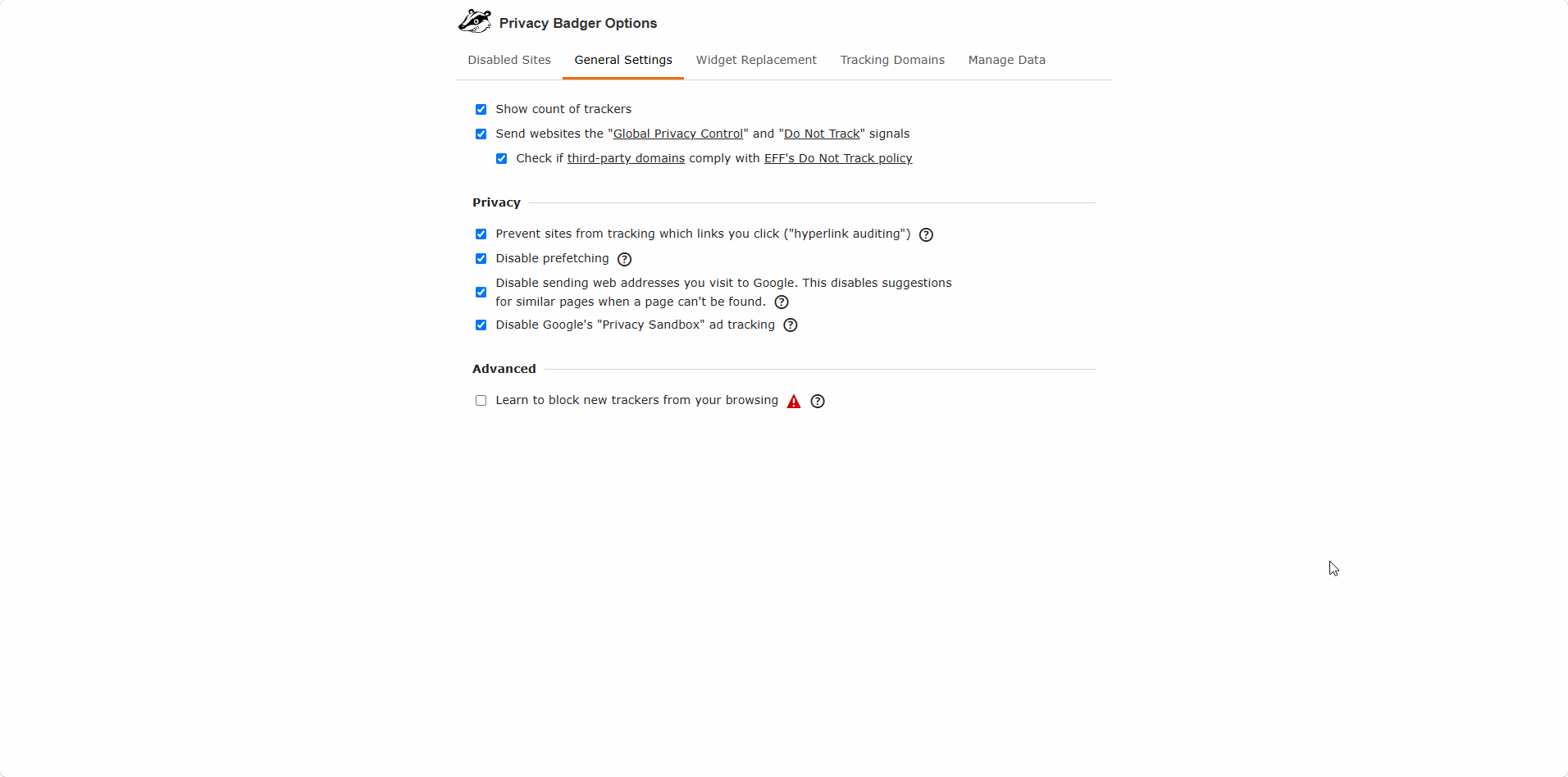
General Settings, as shipped. GPC and Do Not Track are on, hyperlink auditing and prefetching are disabled, and Privacy Sandbox ad tracking is switched off.
That screen does more than it looks. Preventing hyperlink auditing stops the pings sites fire when you click a link, and disabling prefetching stops the browser opening connections to blocked destinations. The Privacy Sandbox line is the EFF making a stand: it opts you out of the ad topics Google decides you are interested in based on the sites you visit, on the argument that Privacy Sandbox shifts control of tracking to Google rather than ending it.
Then there is link cleaning. Privacy Badger removes tracking from outgoing links in Google Docs, Gmail, Maps, Images and Search, plus Facebook, so a click does not route through a logging server first. CyberInsider notes newer versions block those beacons at the network layer, which survives pages that rewrite links after they load.
Does Privacy Badger Block Ads?
Sometimes, and only as a side effect. It blocks ads when the ad tracks you across sites and leaves the rest alone, so blocking ads as a category still needs an ad blocker. A reviewer who tested it in January 2026 put it well: it is more a private browsing tool than an ad blocker.
In practice, a page with well-behaved house ads keeps them, and a page stuffed with programmatic ad tech loses a lot. For example, on a news site we were surprised how many elements survived while the tracker count climbed anyway. Ad blocking is a side effect here, not the solution being sold.
The widget side is where you see it working. When it blocks a social button, video player or comments box, it can leave a click-to-activate placeholder instead of a hole. The EFF's framing of why this matters is the best line in its documentation: if you see a widget, the widget sees you back.
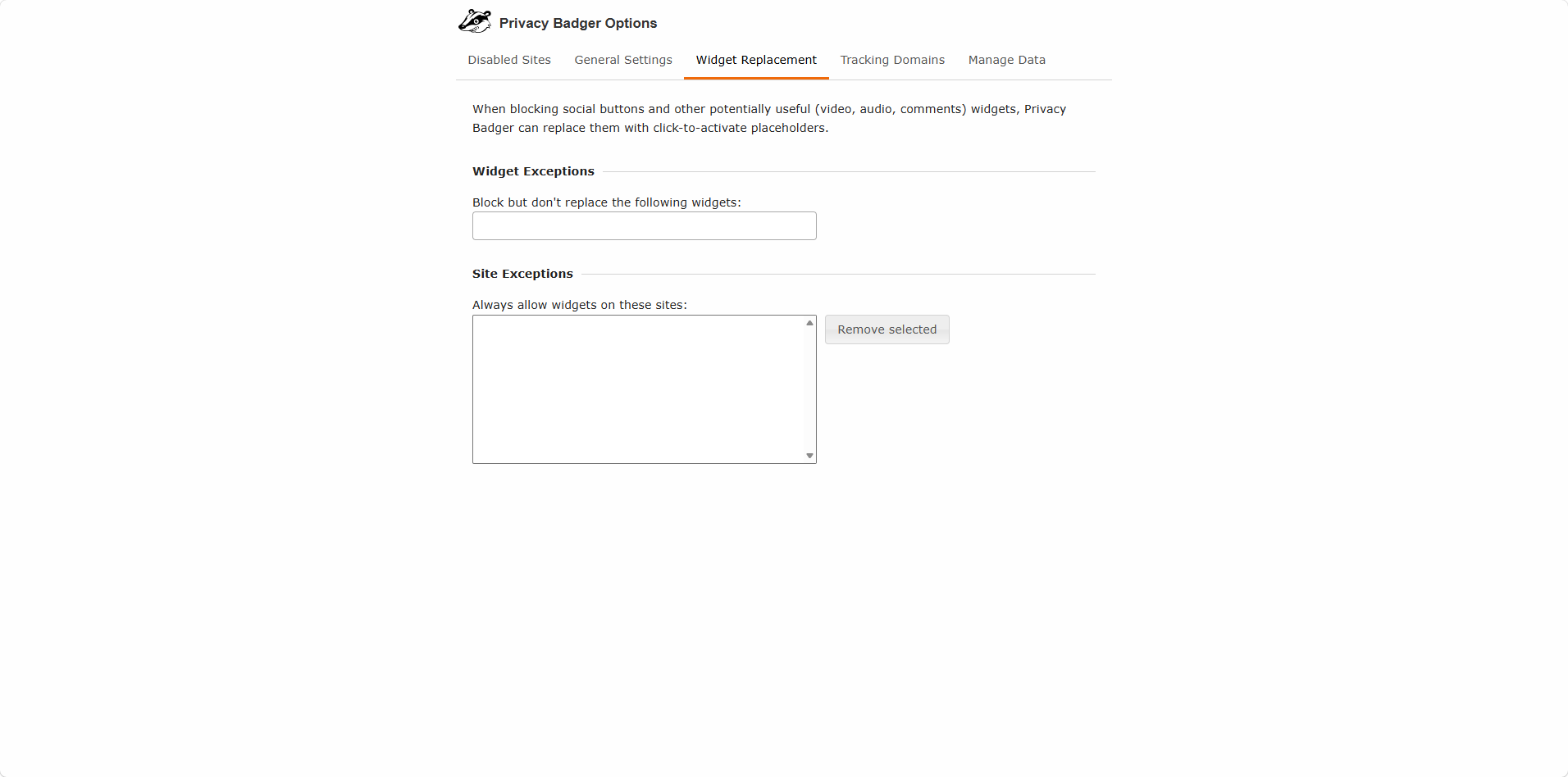
Widget Replacement lets you exempt specific widgets or whole sites, which is the fix when a comments section refuses to load.
Fixing Breakage and Managing Your Data
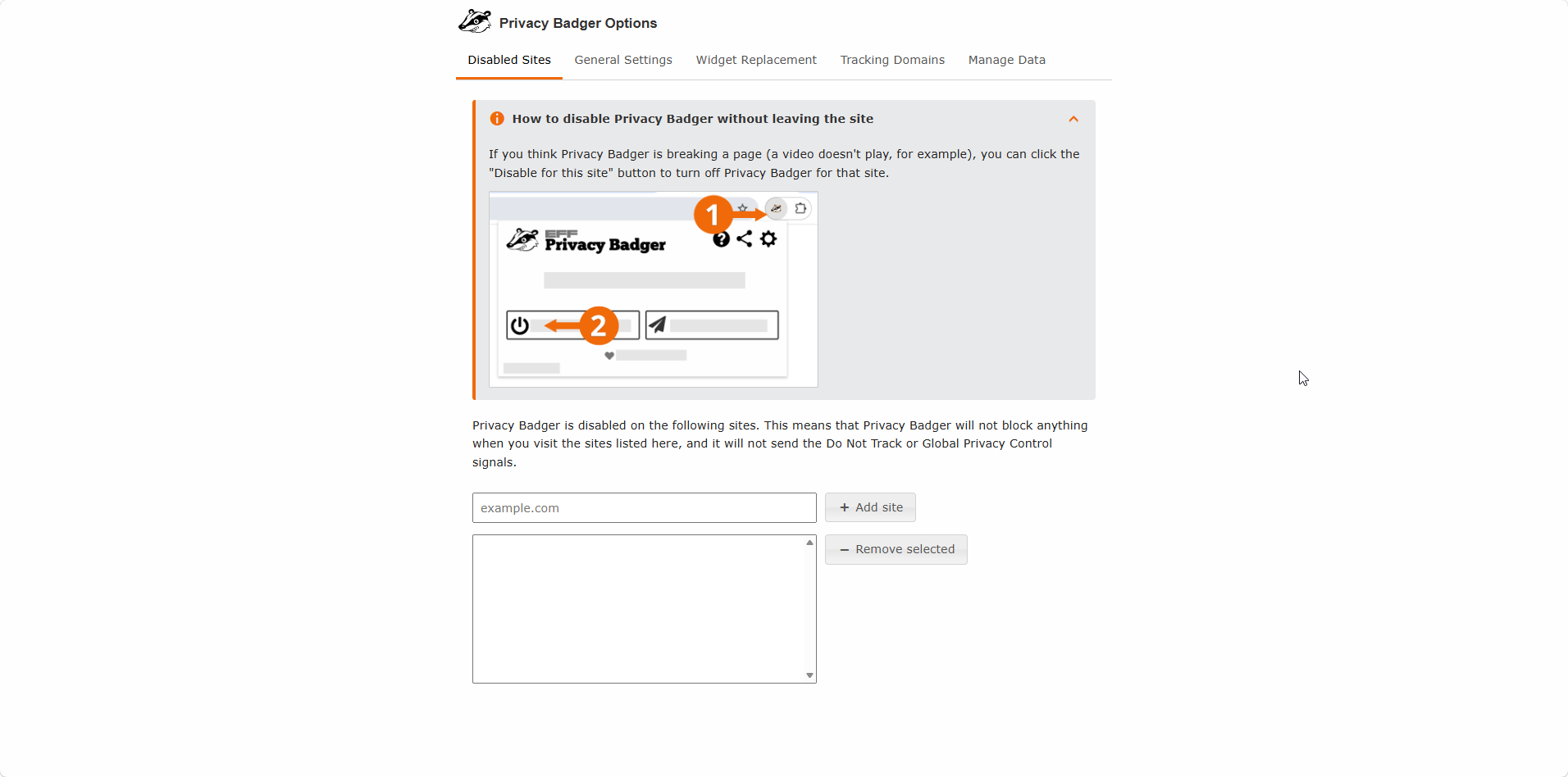
Blocking trackers breaks pages occasionally, and Privacy Badger's onboarding admits it. Its options page now opens on Disabled Sites, with a guide to switching the extension off for one site without leaving it.
Disabled Sites lists every site where the badger stands down. Note that GPC and Do Not Track stop being sent on those sites too.
The workflow we settled on: when a video will not play or a login loops, open the popup, hit Disable for this site, reload, and use Report broken site if it looks like a filter problem rather than a one-off. In the worst case a whole site goes on the disabled list, and that is a one-click decision rather than a research project. Reporting is the only time the extension sends anything about your browsing anywhere.
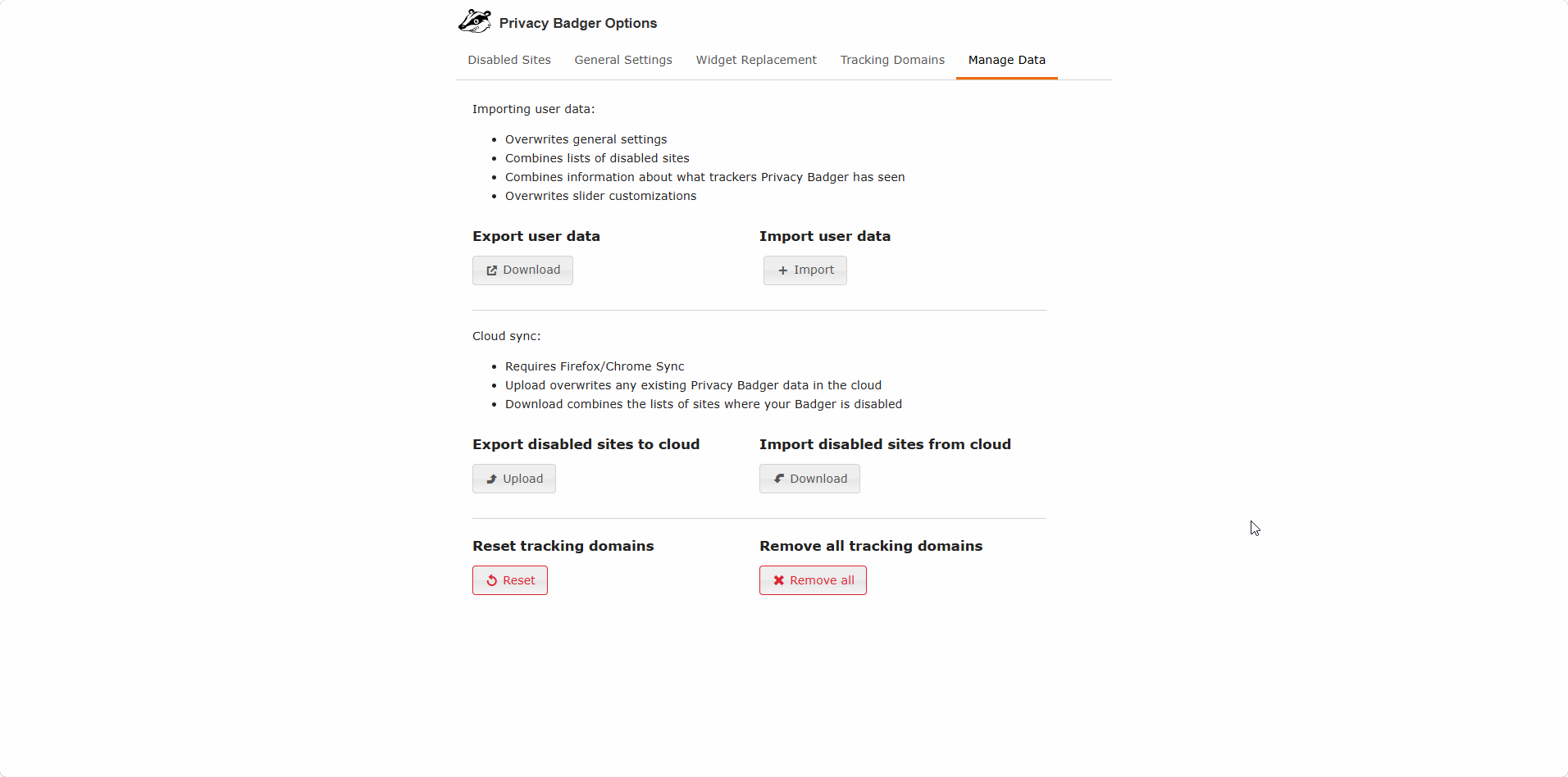
Manage Data covers export, import, cloud sync through your browser account, and a reset if the badger has learned something strange.
Export is worth doing once you have tuned a few sliders, because the file carries your settings, your disabled sites and everything the badger has learned. Reset puts back domains you have deleted, which saves a guess when something stops working after a cleanup. Cloud sync through Firefox or Chrome Sync is the automatic version of the same idea.
Privacy Badger vs uBlock Origin
| Feature | Privacy Badger | uBlock Origin |
|---|---|---|
| Primary job | Blocking third-party trackers | Blocking ads and trackers |
| Method | Behavioral detection, pre-trained list | Community filter lists |
| Setup | None, works immediately | None, but deep options exist |
| Blocks ads | Only tracking ads | All ads by default |
| GPC and Do Not Track | Sent automatically | Not sent |
| Widget replacement | Yes, click-to-activate | No |
| Link cleaning | Google and Facebook | Through filter lists |
| Best used | Alongside an ad blocker | As your main blocker |
The Reddit consensus is blunt and worth reading before you install both. In an r/firefox post, most replies argue uBlock Origin already covers the same trackers and that Privacy Badger is redundant, with one long-time user saying it often breaks sites while turning it off changed nothing. A r/privacytoolsIO thread makes the sharper technical case: since local learning went off, it blocks cookies from a much smaller set of domains than a filter list covers, and the maintainers there removed it for doing nothing uBlock Origin cannot.
The counter-argument in the same threads comes from a minority who run both. They report that the badger catches a bunch of things their ad blocker lets through, that widget replacement is genuinely useful, and that the signals get sent without anyone having to enable them. A few pair it with NoScript, which is a different job again. In r/privacy, the same question gets asked about Brave, where built-in shields already do much of this work.
Our position after testing: if you already run uBlock Origin or Brave shields, Privacy Badger adds signals, widget replacement and link cleaning rather than a jump in blocking. If you run neither, it is the least demanding privacy extension available.
What Users Say About Privacy Badger
| Platform | Rating | Reviews |
|---|---|---|
| Microsoft Edge Add-ons | 4.5 / 5 | 143 ratings |
| Firefox Add-ons | 4.8 / 5 | 142 reviews |
Store reviewers are warm, and the themes repeat: easy to use, light on resources, and a visible tracker count that makes the invisible part of the web legible. One Firefox reviewer with ten years on the extension called it the least intrusive and most configurable blocker they had used. Older EFF advice paired it with HTTPS Everywhere, which forced the https version of a page, and browsers now handle that themselves.
The criticism sits in privacy communities rather than store pages, and it is technical. The Reddit threads raise three points: redundancy next to uBlock Origin, occasional breakage, and the fingerprinting concern behind disabling local learning. The EFF's response to the last one is why we trust the project: they turned the feature off, published why, and left it as a documented choice.
How We Tested Privacy Badger as a Tracker Blocker: Our Verdict
We ran Privacy Badger for several days in Edge on Windows, taking it from the official store and leaving every default alone at first. Along the way, we:
-
Installed it, read the permission prompt, and completed the EFF onboarding
-
Browsed news, shopping, video and social pages, watching the tracker count climb
-
Opened the Tracking Domains tab and moved sliders between red, yellow and green
-
Reviewed every General Settings option, including the unchecked learning box
-
Disabled the badger on a site, then exported our data from Manage Data
Our conclusions, scored:
-
Tracker blocking (4.4/5). Thousands of domains blocked with no input from us. It trails a filter-list blocker on coverage, though the behavioral approach catches what lists miss.
-
Ease of use (4.9/5). There is no configuration. Install it, ignore it, and use one button when a page breaks.
-
Speed and performance (4.6/5). No noticeable slowdown, and fewer third-party requests means less to load.
-
Features and control (4.2/5). Sliders, widget replacement, link cleaning and signals in one extension, with no ad blocking by design.
-
Transparency (5.0/5). A nonprofit, open source, with the reasoning for every default published in public.
The final verdict Privacy Badger earns is a qualified yes. Install it for automatic protection with zero upkeep, or to have GPC and Do Not Track sent for you and tracking widgets neutered, and it is a good future-proof default for a person who will never open an options page. Pair it with an ad blocker, expect the occasional broken video, and leave local learning off unless you understand the trade-off. If you already run a full blocker and keep your extension list short, you can skip it without losing much.
Privacy Badger Pros and Cons
Pros
-
Free, open source, and made by a nonprofit with no advertising money involved
-
Works immediately with no lists, rules or configuration to maintain
-
Sends Global Privacy Control and Do Not Track signals by default
-
Replaces tracking widgets with click-to-activate placeholders
-
Cleans tracking from outgoing Google and Facebook links
-
Per-domain sliders and a visible record of where tracking was seen
Cons
-
Not an ad blocker, so most people need a second extension
-
Local learning is off by default, which narrows what it catches
-
Redundant for anyone already running uBlock Origin or Brave shields
-
Occasional site breakage that you fix by disabling per site
-
No protection against first-party data collection
Pair Privacy Badger With Halocard for Private Payments
Privacy Badger stops third parties watching you move around the web. It cannot help at the checkout, where your name, billing address and real card number are handed over in full and stored by every merchant you buy from.
That is the gap Halocard is built for. It puts a privacy layer between you and every merchant: US-issued virtual Visa cards created in seconds, each with its own spending limit, an instant lock, and a billing address you choose instead of your own. Disposable cards suit one-time orders, and funding includes cryptocurrency. See how the cards themselves work, what they do for private purchases and for shopping and subscriptions, across 120+ countries with no credit check and plans starting at $12 a month.
Frequently Asked Questions
Is Privacy Badger Worth Using With uBlock Origin?
It depends what you want. uBlock Origin already blocks most of the same third-party domains, so the overlap is real. Privacy Badger adds automatic GPC and Do Not Track signals, click-to-activate widget placeholders, and Google and Facebook link cleaning. Run both if those matter, or uBlock Origin alone for a minimal setup.
Does Privacy Badger Block Ads?
Only ads that track you across sites. It is a tracker blocker first, and the EFF designed it that way to encourage advertising that does not follow people around. If your goal is a clean page with no ads at all, install an ad blocker and treat the badger as the privacy layer on top.
Is Privacy Badger Safe and Who Makes It?
It is made by the Electronic Frontier Foundation, the digital rights nonprofit, and it is free and open source. It requires broad site permissions because it must inspect third-party requests on every page, and the EFF states it never shares your browsing data unless you file a broken site report.
Why Is Privacy Badger Blocking Something I Need?
Because a domain it sees tracking is also serving something useful, which happens with video players, comments and logins. Open the popup and either move that domain's slider to green or use Disable for this site. Widget Replacement can also allow specific widgets everywhere.
Does Privacy Badger Still Learn From My Browsing?
Not by default. The EFF switched local learning off in 2020 after Google researchers showed it could make users more identifiable, and blocking now comes from a pre-trained list that updates periodically. You can opt back in from General Settings, which restores the original behavior along with the fingerprinting risk.
Does Privacy Badger Work on Every Browser?
It runs on Chrome, Firefox, Edge, Opera and Brave on the desktop, plus Firefox for Android. Safari is not on that list, and there is no iPhone version. Meta and Google properties are where its link cleaning matters most, so desktop is where you feel it. If your browser already blocks trackers heavily, check what it does before adding another extension on top.
Does Privacy Badger Slow Down Browsing?
Not in our testing. Blocked requests are never downloaded, which usually makes ad-heavy pages feel lighter rather than slower. The extension itself is small, and store reviewers consistently describe it as lightweight.
Sources
-
Privacy Badger. Official FAQ
-
EFF. Privacy Badger Is Changing
-
EFF. Control Over Widgets
-
EFF. Google Link Tracking
-
EFF. Privacy Sandbox Opt-Out
-
EFF. Online Tracking Out of Control
-
GitHub. Privacy Badger Releases
-
The Register. EFF Disables Local Learning
-
CyberInsider. Better Link Tracking Blocks
-
All About Cookies. Privacy Badger Review
-
Chrome Web Store. Privacy Badger
-
Firefox Add-ons. Privacy Badger for Android
-
Microsoft Edge Add-ons. Privacy Badger
-
Reddit. Should I Use Both
-
Reddit. Why Not Recommended
-
Reddit. Necessary With Brave
Sourced on September 30, 2026
*Please see Halocard's Terms of Service or Pricing for the most up to date pricing and fee information. This publication is provided for general information purposes and does not constitute legal, tax or other professional advice from Halocard LLC or its subsidiaries and its affiliates, and it is not intended as a substitute for obtaining advice from a financial advisor or any other professional. We make no representations, warranties or guarantees, whether expressed or implied, that the content in the publication is accurate, complete or up to date.
Halocard Virtual Cards

Instant approval
Create your first card in under 5 minutes.

Private purchases
Purchases never appear on your bank account.

Powered by Visa
Accepted at 175M+ merchants globally.
3 steps to create your virtual credit card
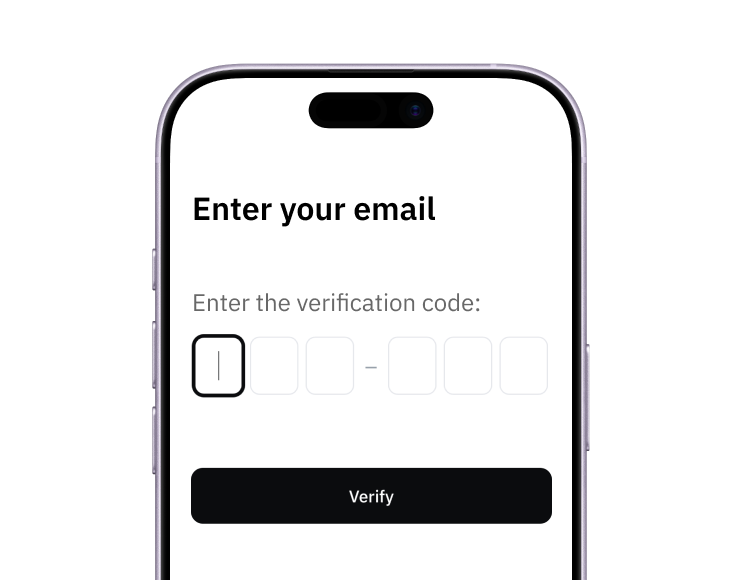
1. Sign up
Create your account from a web browser. No need to download an app.
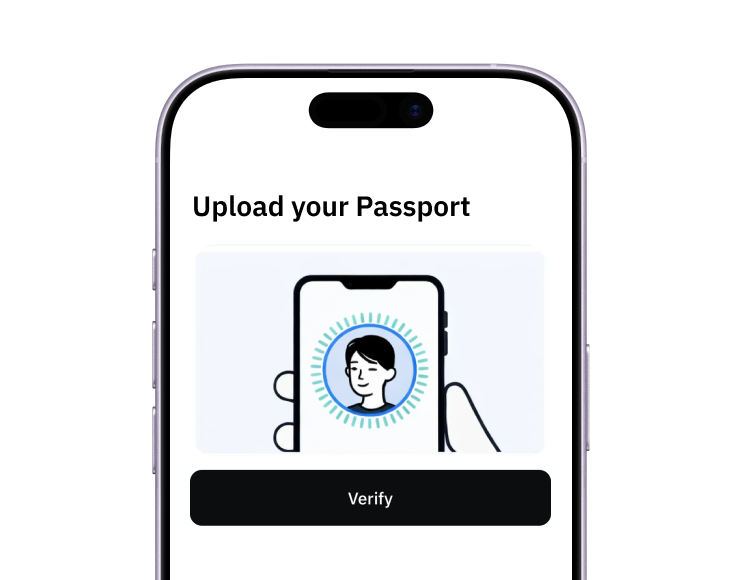
2. Verify
Verify you're a real person in 3 minutes, from the US or any of 120+ countries.
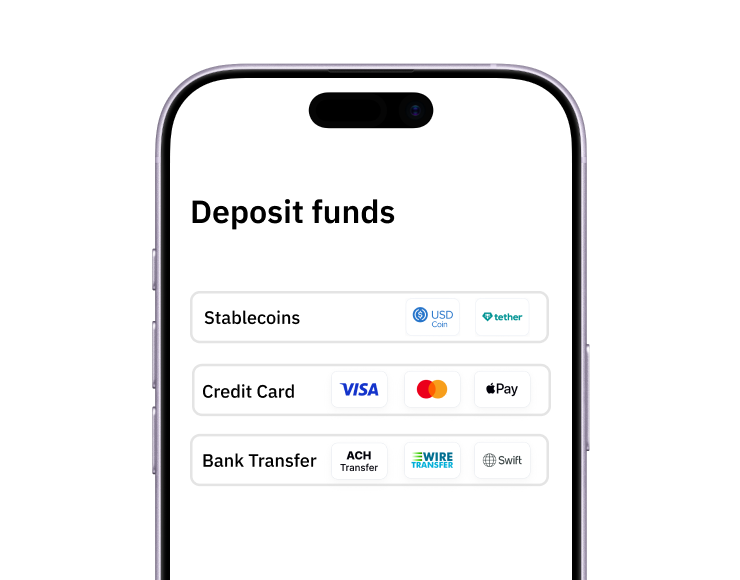
3. Fund
Add funds by debit/credit card, Apple Pay, Google Pay, bank transfer, stablecoins, or crypto.
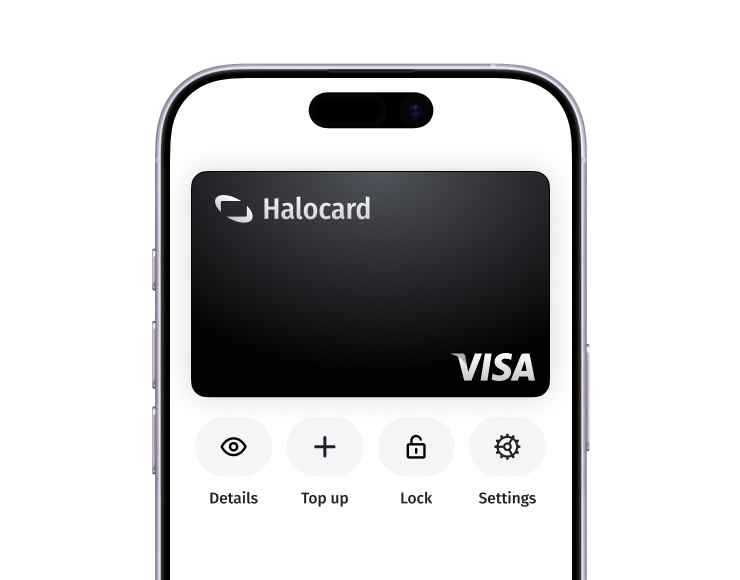
Pay with Halocard
Pay online and in-person wherever Visa is accepted. You can also order a physical Halocard if you prefer.